
Online Memorial Service Planning Steps for Grieving Families

To plan an online memorial service, pick a platform, set a clear program and host, test the tech, invite guests with simple access instructions, and run a short, well-timed program, then share the recording afterward. Families who have held memorials on Zoom found them intimate and meaningful, especially when distant relatives could finally take part.
Here is what to do in the first hour:
- Choose a platform: Zoom, YouTube Live, Facebook Live, or a memorial-specific site like Ever Loved.
- Name one host and one separate tech operator.
- Draft a rough program timed to 45 to 90 minutes.
- Schedule a 20-minute tech rehearsal with speakers.
- Build your invite list and send access details.
- Decide who will record the service and who receives the file afterward.
Key Takeaways
A well-run online memorial depends on separating the emotional role of family from the technical role of the host, and on testing the technology the day before, not the day of.
| Point | Details |
|---|---|
| Pick platform by audience size | Use Zoom for small family groups, YouTube Live or Facebook Live for larger public services. |
| Assign a dedicated tech operator | Keep the family focused on grief while one person manages admits, muting, and screen sharing. |
| Rehearse the evening before | A 20-minute run-through with speakers catches most problems before they happen live. |
| Face the camera toward speakers | Remote guests connect through visible faces, not the backs of heads in a room. |
| Bravo Family Mortuary handles logistics | Their team coordinates stream setup, VA paperwork, and bilingual support with transparent, all-inclusive pricing. |
Table of Contents
- Online Memorial Service Planning Steps: The 10-Step Checklist
- How Do You Choose the Right Platform and Format?
- How Do You Plan the Program and Assign Roles?
- What Does the Tech Checklist Look Like Before the Service?
- How Do You Invite Guests Without Confusion?
- How Do You Include Photos, Music, and Video Respectfully?
- What Should the Day-Of Run Sheet and Backup Plan Include?
- When Should You Bring in a Funeral Professional?
- A Funeral Director’s Note on Letting Go of the Tech Duties
- How Bravo Family Mortuary Supports Your Online Memorial
- Sources
Online Memorial Service Planning Steps: The 10-Step Checklist
Grief doesn’t wait for logistics, so keep this timeline tight. Here’s the roadmap from decision to follow-up.
- Confirm date and time (first 24 hours) — family decides.
- Choose platform and format (first 24 hours) — family or tech-savvy relative.
- Assign host and tech operator (first 24 hours) — family delegates.
- Build invite list (24 to 48 hours) — family or a designated organizer.
- Send invitations with access details (48 hours) — tech operator.
- Draft the program and order of service (48 to 72 hours) — host with family input.
- Collect photos, music, and video (72 hours) — family and friends, with a deadline.
- Run a tech rehearsal (evening before) — host, tech operator, speakers.
- Run the service (day of) — host and tech operator.
- Share the recording and follow up (within a week) — tech operator.
How Do You Choose the Right Platform and Format?
Format comes first, platform second. A fully virtual service works when most attendees are remote. A hybrid service pairs a small in-person gathering with a livestream for everyone else. A recorded tribute skips live attendance entirely and shares a finished video after the fact.
Platform choice depends on your audience size and how much control you need over who watches.
| Platform | Best For | Ease of Setup | Privacy Controls | Recording & Replay | Cost |
|---|---|---|---|---|---|
| Zoom | Small family gatherings | Easy | Strong (waiting room, passcode) | Built-in, downloadable | Free plan caps group calls at 40 minutes; paid removes limit |
| YouTube Live | Large public audience | Moderate | Limited (public or unlisted link) | Automatic, stays online | Free |
| Facebook Live | Community/church networks | Easy | Limited (depends on group settings) | Automatic on the page | Free |
| Vimeo | Polished, ad-free replay | Moderate | Password-protected links | High-quality, downloadable | Paid subscription |
| Ever Loved / memorial platforms | All-in-one tribute pages plus streaming | Moderate | Guest-list based | Built-in hosting | Free to low-cost |
| PartingPros (client portal) | Arranging the service itself, not the livestream | Easy | Secure, family-only login | N/A (arrangement tool) | Included with service |
Zoom suits an intimate family gathering where you want to control the guest list. YouTube Live or Facebook Live make sense for a public celebration of life with hundreds of attendees. Vimeo is worth the subscription cost if a polished, permanent replay matters more than live interaction. PartingPros isn’t a streaming tool at all. It’s how families complete the funeral arrangements themselves, securely and online, freeing you up to focus on the tribute rather than paperwork.
Pro Tip: Prioritize audio over video quality. A grainy picture with clear sound beats crisp video that nobody can hear.
How Do You Plan the Program and Assign Roles?
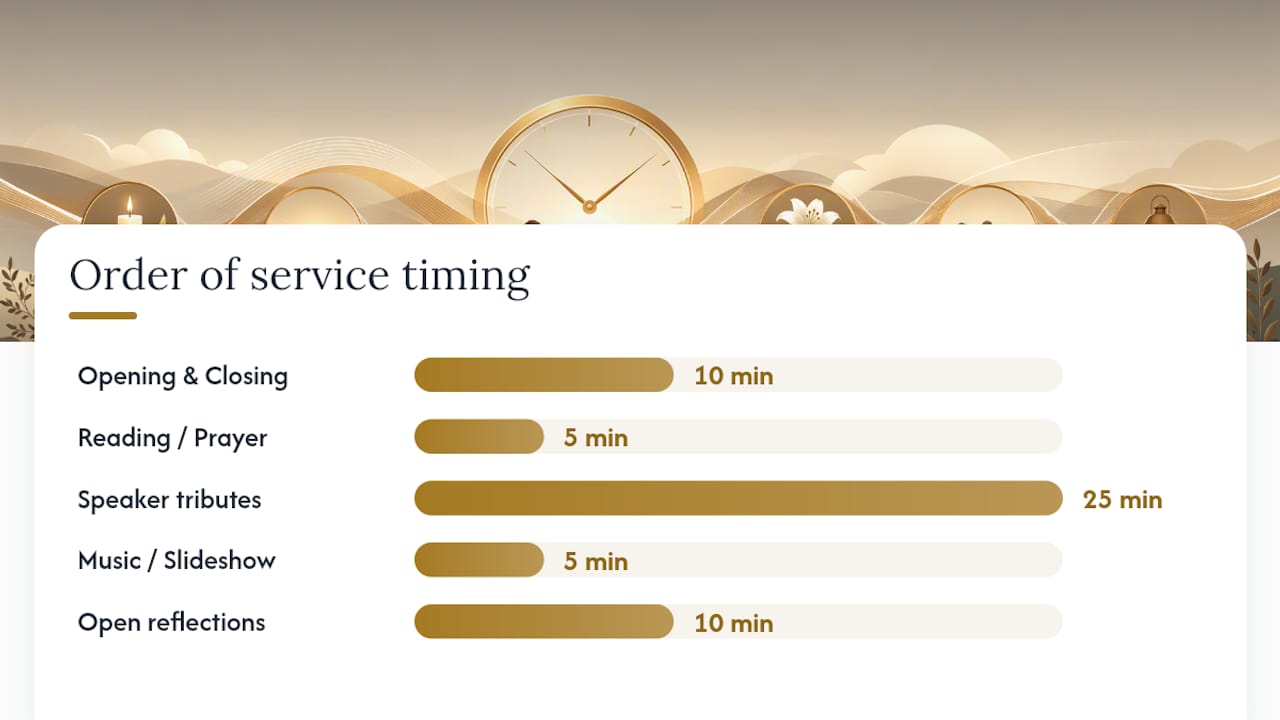
A loose plan turns into an awkward, rambling hour. A timed program keeps the service moving with dignity.
Sample order of service (60 minutes):
- Welcome and opening words (5 minutes)
- Reading or prayer (5 minutes)
- Speaker tributes, 2 to 3 minutes each (25 minutes)
- Music or slideshow (5 minutes)
- Open reflections from attendees (10 minutes)
- Closing words and next steps (5 minutes)
Tribute’s planning guide recommends keeping the whole service to 45 to 90 minutes and holding individual tributes to 2 to 3 minutes so attention stays on the screen rather than drifting.
Assign these roles before the day arrives:
- Primary host — welcomes guests and guides the tone.
- Tech operator — manages admits, muting, and screen sharing.
- Moderator — introduces each speaker by name.
- Music/slideshow facilitator — cues media at the right moment.
- Chat monitor — captures written memories guests leave behind.
Give each speaker a heads-up on their exact time slot, and ask them to write down two or three specific memories rather than speaking freely. Specific stories land better than general praise, and they keep speakers from freezing up.
What Does the Tech Checklist Look Like Before the Service?
Test everything the day before, not the hour before. A short run-through the evening before catches most of the problems that would otherwise derail the live service.
Hardware to gather:
- Laptop or tablet, fully charged, plus a charging cable within reach.
- An external microphone if one is available. Built-in laptop mics pick up too much room noise.
- A tripod or stable stand so the camera doesn’t wobble.
- A second device logged in as a backup, in case the primary connection drops.
| Setting | Recommendation | Why It Matters |
|---|---|---|
| Audio source | External or lapel mic | Clearer than built-in laptop mic |
| Camera angle | Face speakers, not the backs of heads | Remote guests see expressions, not silhouettes |
| Internet | Wired connection if possible | Fewer dropouts than Wi-Fi |
| Recording | Turn on at start, confirm before guests join | Prevents lost footage |
| Backup device | Second phone or tablet logged in | Covers a crash mid-service |
The camera-placement detail matters more than most families expect. Position the camera so it faces the speakers and any display rather than pointing at the backs of heads in a room. Remote guests connect through faces, not the tops of people’s shoulders.

Run the rehearsal with your host, tech operator, and every speaker present if you can manage it. Test the microphone volume, confirm the internet connection is stable, and have each speaker practice their entrance and exit from the screen.
How Do You Invite Guests Without Confusion?
Your invitation needs six things: date and time (with time zone spelled out), the direct link, a passcode if required, a phone dial-in number for anyone without reliable internet, a one-line program summary, and a contact name for tech help.
Sample invitation text: “Please join us Saturday, March 14 at 2:00 PM Pacific to celebrate the life of [name]. Click here to join, or call [phone number] if you can’t access video.”
Send reminders on this schedule:
- Initial invite, 5 to 7 days out.
- Reminder at 48 hours.
- Reminder at 24 hours.
- Final reminder 1 hour before start, with the link repeated.
Set simple etiquette expectations in the invite itself: cameras on when possible, microphones muted unless speaking, and chat reserved for written condolences rather than side conversations. A gentle reminder about lighting (facing a window, not sitting with your back to one) helps guests look their best on camera.
How Do You Include Photos, Music, and Video Respectfully?
Ask family and friends to submit photos, video clips, and memories by a firm deadline, at least 48 hours before the service, using a shared folder or simple upload link. One person should assemble the final slideshow so the format stays consistent.
- Export slideshows as MP4 or MOV files, tested on the actual streaming platform beforehand.
- Check music volume against your speaking volume so nobody has to scramble for the volume knob mid-service.
- Confirm licensing if the service is public on YouTube or Facebook, since some platforms mute audio over copyrighted music.
- Offer a phone dial-in for guests who can’t manage video, and enable captions where the platform supports them.
Pro Tip: Assign one person, separate from the host, to manage media cues. Trying to eulogize a parent while also hunting for the right slideshow file is a recipe for stress nobody needs that day.
What Should the Day-Of Run Sheet and Backup Plan Include?
A simple run sheet keeps everyone calm when emotions run high. Time-stamp each segment and name who owns it: “2:00, welcome, host. 2:05, reading, cousin Maria. 2:10, tribute speakers, moderator cues each one.”
Backups matter more than people expect:
- A second device logged in as backup, ready if the primary connection fails.
- A phone dial-in number listed in the invite for guests with weak internet.
- A second person able to step in as host if the first is too overcome to continue.
- A clear note on where the recording will be posted afterward.
Open the service with a short script: “Thank you for joining us today to honor [name]. Please keep yourselves muted during the service, and we’ll open the floor for shared memories near the end.” That one sentence sets the tone and answers most guest questions before they’re asked.
When Should You Bring in a Funeral Professional?
Some services outgrow a family member’s laptop, making it essential to consider expat medical insurance for global citizens to help cover international logistics and unexpected costs. If you’re managing veterans’ paperwork, expecting a large public audience, or juggling a hybrid venue with in-person and remote guests at once, a funeral home’s support is worth the call.
Ask any provider you’re considering:
- Do you handle recording and hosting, or just the in-person service?
- What privacy controls do you offer for the livestream?
- Is pricing transparent and all-inclusive, with no hidden fees?
- Do you offer bilingual support for Spanish-speaking family members?
- How is the recording shared with guests afterward?
Bravo Family Mortuary’s online arrangement guide walks through how families complete the paperwork and payment side entirely online, leaving more energy for the parts that actually require your presence.
A Funeral Director’s Note on Letting Go of the Tech Duties
I’ve watched too many family members try to eulogize a parent while simultaneously fumbling with mute buttons and screen-share settings. Don’t do that to yourself. Separating family heart from tech hands isn’t a shortcut. It’s permission to grieve without also running IT support. Hand the tech to a cousin, a neighbor, or your funeral home. Your only job that day is to be present.
How Bravo Family Mortuary Supports Your Online Memorial
Bravo Family Mortuary handles the logistics behind an online memorial so your family can focus on each other, not on troubleshooting a livestream. Every arrangement comes with transparent, all-inclusive pricing shown upfront, no hidden fees, no sales pressure.
Here’s what that support includes:
- Stream setup and recording coordination for services of any size.
- Hybrid venue logistics if you’re combining an in-person gathering with remote guests.
- VA burial benefits paperwork handled at no additional charge for veteran families.
- Bilingual Spanish and English support throughout the entire arrangement process.
- Secure online arrangements and payments through the PartingPros portal, available 24 hours a day.
Pro Tip: Schedule your tech rehearsal directly with Bravo Family Mortuary’s team, then use the PartingPros portal to finalize arrangements and payment securely from home, day or night.
Bravo Family Mortuary is family-owned, answers to San Diego families rather than shareholders, and carries a five-star reputation built on more than 47 Yelp reviews. Whether you need full-service cremation with a memorial or want to see our complete pricing before deciding anything, the option is there when you’re ready to look at it. We are here whenever you are ready.
Sources
- How to Hold a Virtual Memorial Service | The New York Times
- Funeral
- How to Host a Virtual Memorial Service (2026) | Tribute
Recommended
- Virtual Funeral Arrangement Process: A Family Guide | Bravo Family Mortuary
- How Remote Funeral Planning Works: A Family Guide | Bravo Family Mortuary
- Arrange a Funeral Entirely Online: Your Step-by-Step Guide | Bravo Family Mortuary
- Family Roles During Funeral Planning: A Clear Family Guide | Bravo Family Mortuary